Geo Popups
Location-targeted modal popups for your website
What Are Geo Popups?
Geo Popups are modal windows that appear only for visitors in specific locations. They command attention in a way that notification bars cannot, making them ideal for important announcements, special offers, or situations where you need the visitor to make a choice.
A visitor from Germany might see "Welcome! Would you like to switch to our German site?" with "Yes, take me there" and "No, stay here" buttons. A visitor from the US sees nothing at all. The popup only appears for the audience you choose.
Common Use Cases
Language and store switcher
"Welcome! You're visiting from Germany. Would you like to switch to our German site?" — with Yes/No buttons. Lets visitors choose without forcing a redirect.
Regional promotions
"Black Friday: 30% off for US customers only!" — a targeted deal that only US visitors see, with a button to shop the sale.
Market expansion announcements
"We have a new warehouse in Singapore! Enjoy faster shipping across APAC." — shown to visitors in Southeast Asia and Oceania.
Compliance and legal notices
"Some products aren't available in your region." — shown to visitors from the affected countries. For cookie consent with accept/decline and categories, use Geo Consent instead.
Event and survey invitations
"We're hosting a meetup in London next month. Want to attend?" — shown to UK visitors with RSVP and dismiss buttons.
How to Create a Geo Popup

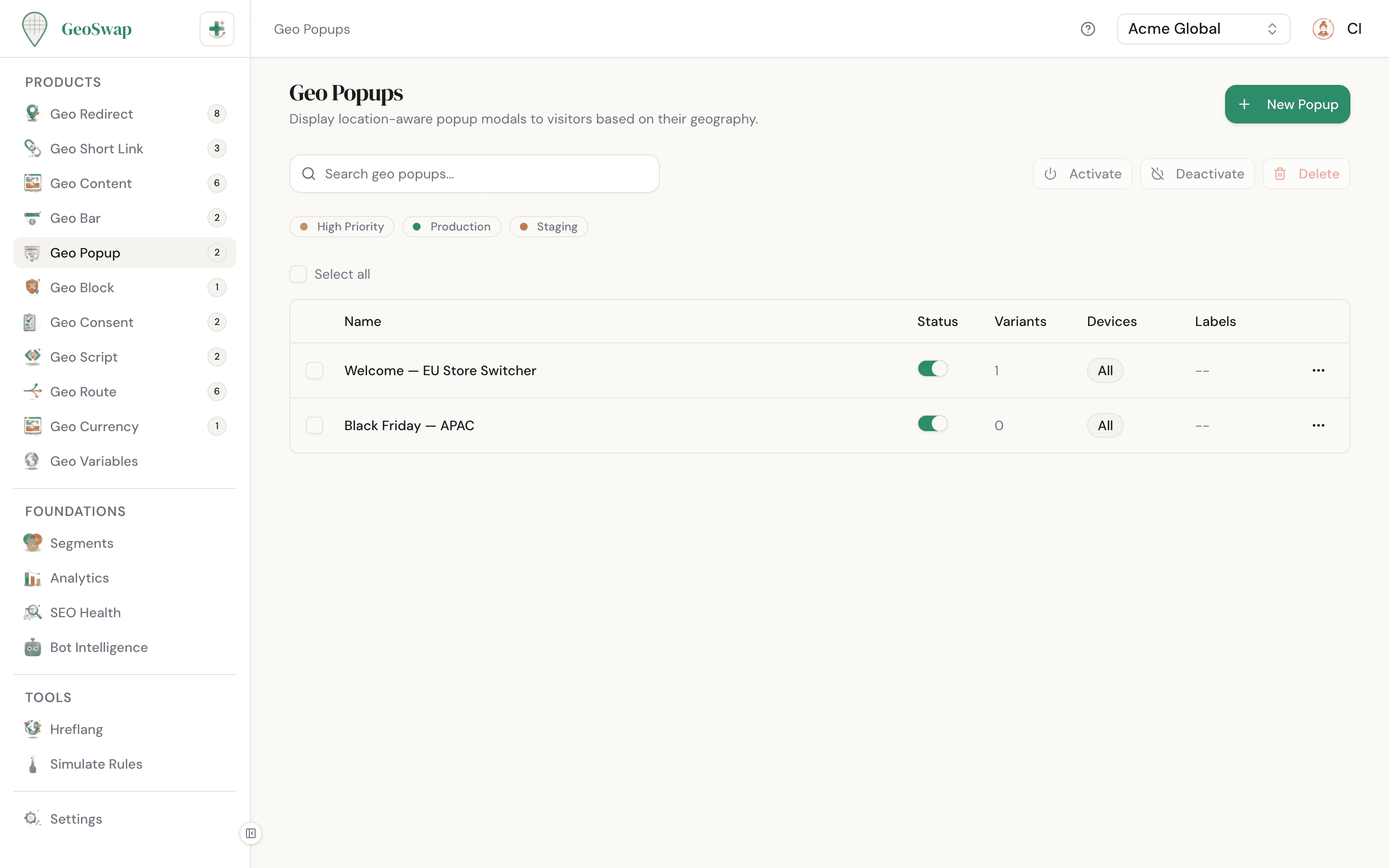
Open Geo Popups in your dashboard
Navigate to Geo Popup in the sidebar and click New Popup.

Name it and set page targeting
Give your popup a descriptive name (e.g., "DE Store Switcher"). Choose where it should appear: all pages, specific URLs, or a URL pattern. Patterns are regular expressions, checked against both the full address and the path, so ^/pricing$ matches just your pricing page. See page targeting.

Configure appearance
Pick which devices see it (desktop, mobile, or both), set the width, an optional height, the background color, and optionally a background image. The popup is centered on the screen with a dark overlay behind it.

Add default content and buttons
Under Default Content, write a title and description and add up to two buttons. Each button either dismisses the popup or opens a link, so a "Yes / No" choice takes two buttons.

Add rules and save
Add a rule for each segment and write its Geo-Targeted Content in HTML. You can have different popup content for different regions. Click Create Popup and your popup is live.
Appearance Options
Geo Popups give you full control over sizing and styling to match your brand:
Setting
Description
Device visibility
Show on desktop, show on mobile, or both (the default). GeoSwap decides from the visitor's device type, so phones and tablets count as mobile.
Width
Maximum width in pixels, from 100 to 2,000 (default 480). On smaller screens the popup shrinks to fit.
Height
Optional, from 100 to 2,000 pixels. Leave it empty and the popup grows to fit its content. It never gets taller than 90% of the screen; longer content scrolls.
Background color
The popup's background color (default white). The popup's text is dark by default, so a light background reads best.
Background image
An optional image behind the popup content. Great for promotional popups. Make sure text remains readable over the image.
Buttons
Unlike Geo Bars (which have a single optional CTA), Geo Popups support up to two buttons. This lets you give visitors a real choice. Buttons are shared by every rule and always show below the popup content.
Example: Store switcher for German visitors
Yes, take me to the German siteGreen (primary)
No thanks, stay hereGray (secondary)
Each button has its own text, button color, text color, and Action. Open link sends the visitor to the URL you enter (it must start with http:// or https://). Dismiss popup closes it. That's how you create a "No thanks" option.
Dismissal
Every popup has a close button (×) in the top-right corner. Visitors can also close it by clicking the dark backdrop or a Dismiss popup button.
Once closed, the popup stays hidden for that visitor for 7 days. This is saved in a cookie, so it resets if they clear their cookies or switch browsers. Clicking an Open link button doesn't count as a dismissal.
Variants
Just like other GeoSwap products, popups use variants to show different content to different audiences. Each variant targets a segment and has its own HTML content, device targeting, and optional A/B split. Rules are checked from top to bottom, and the first one that matches the visitor wins.
A rule's content replaces the default title and description, and a rule with no content doesn't show a popup at all. So put the message you want each region to see in its rule. You can use content variables like {{country_name}} and {{flag}}.
German visitors
Content: "Willkommen! Would you like to switch to our German site?" with a link to example.de inside the HTML.
French visitors
Content: "Bienvenue ! Would you like to switch to our French site?" with a link to example.fr inside the HTML.
US visitors
Content: "Welcome from {{country_name}}! Free shipping on your first order."
Visitors who do not match any variant will not see the popup at all. Because buttons are shared, put region-specific links in each rule's HTML and keep the buttons generic (like a single "No thanks" dismiss button).
Device Targeting
There are two levels. The popup itself has Show on desktop and Show on mobile checkboxes, which apply to every rule. Each rule also has a Device Targeting setting (All Devices, Desktop, Mobile, or Tablet), so you can give phone visitors a shorter message than desktop visitors in the same region.

Design for mobile screen sizes
If you show popups on mobile, keep the content short and buttons large enough to tap. The popup shrinks to fit narrow screens, but a long message or a fixed height can still feel cramped on a phone. Add a mobile-only rule with shorter content, or untick Show on mobile if the popup does not work well on small screens.
A/B Testing
Geo Popups support traffic splitting inside a rule. Tick Enable traffic split (A/B test), write a second version of the content, and set the split with the slider (1% to 99%). Test different headlines or offers to find what converts best for each region. The buttons and styling stay the same for both versions.

Testing tip
Change one thing at a time. Test headline A vs. headline B with the same body copy, or the same headline with two different offers. Changing too many things at once makes it hard to know what actually made the difference.
Best Practices

Use popups sparingly. They interrupt the visitor's flow, so reserve them for messages that truly matter.
Give visitors a clear way out. The close button is always there, but a "No thanks" dismiss button builds trust.
Keep the title short and the description concise. Visitors decide in seconds whether to engage or dismiss.
Use a background image only when it adds value (e.g., a product photo for a promotional offer). Don't use it purely for decoration.
Test on mobile before going live. The popup shrinks to fit, but check that your content still reads well on a small screen.
Use the store-switcher pattern ("Would you like to visit our German site?") instead of forcing a redirect. Visitors appreciate the choice.

Next up
Learn about Geo Blocks to restrict access to pages by location.