
Geo Currencies
Show prices in your visitor's local currency
What Are Geo Currencies?
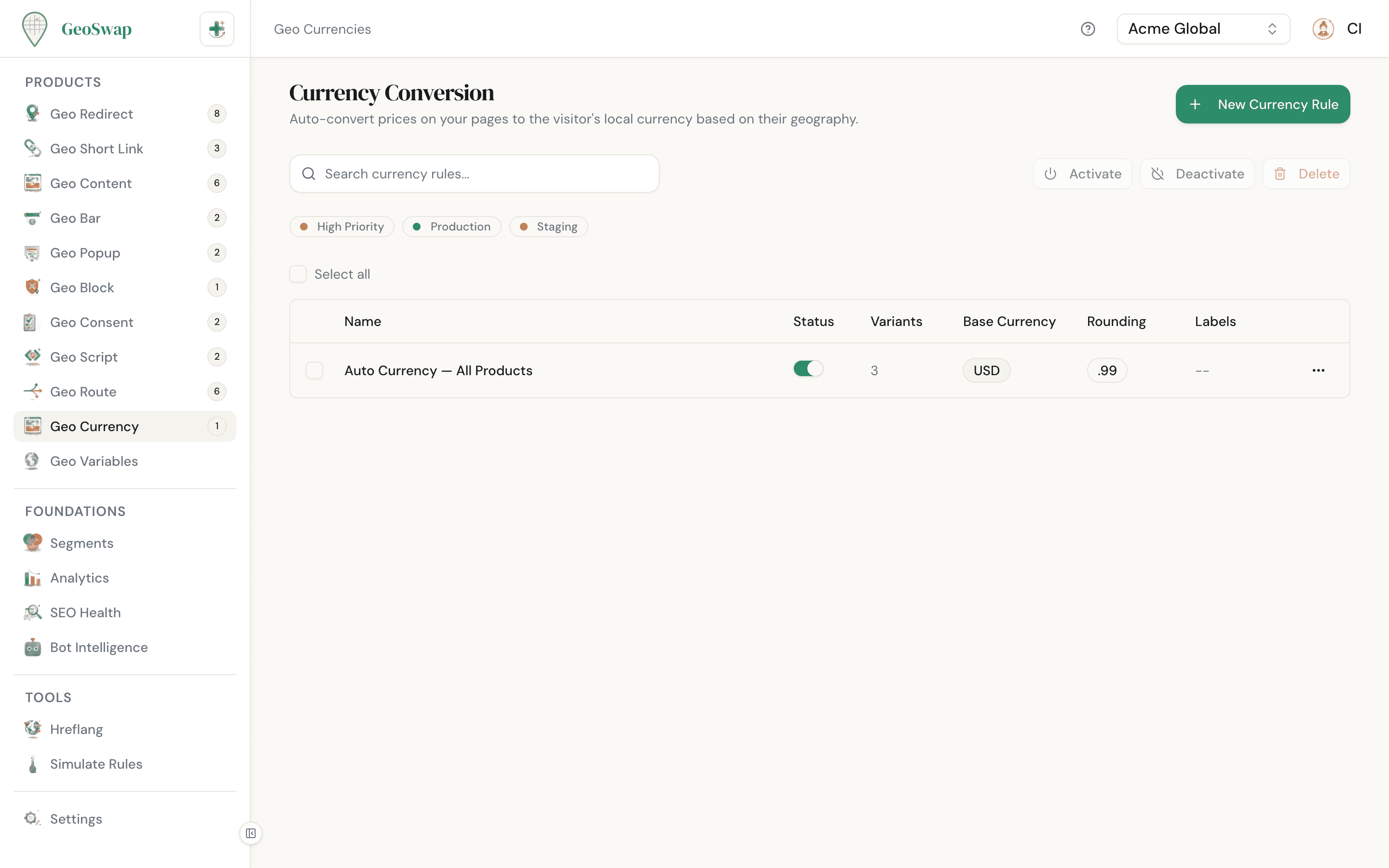
Geo Currencies automatically convert the prices on your page to your visitor's local currency. Visitors from Japan see yen. Visitors from the UK see pounds. Visitors from Germany see euros. No separate pricing pages, no manual conversions — GeoSwap handles it on your existing page.
You set your base currency (the one your prices are written in), tell GeoSwap which elements contain prices, and add rules that pick a target currency and rounding for each segment. Exchange rates update daily. That's it. It runs through the GeoSwap script, so the script needs to be on the page.
Why Currency Localization Matters
92%
of consumers prefer prices in their local currency
Higher bounce
when visitors see unfamiliar currency symbols
Zero maintenance
vs. manually updating separate pricing pages
Maintaining separate pricing pages for each currency is a nightmare. Every time you change a price, you need to update every page. With Geo Currencies, you maintain one page with one set of prices — GeoSwap does the rest.
How It Works

Set your base currency
Tell GeoSwap what currency your prices are written in (e.g., USD, EUR, GBP). This is the starting point for all conversions.

Point to your price elements
Use CSS selectors to tell GeoSwap which elements on your page contain prices. If you leave this empty, GeoSwap looks for .price, .money, [data-product-price], and .woocommerce-Price-amount, which cover many Shopify and WooCommerce themes. Your own selectors could be .price, [data-geoswap-price], or .pricing-amount.

Choose which pages
Use Page Targeting to convert prices on all pages, specific URLs, or pages matching a pattern. You can also exclude pages, like checkout, where you want the original currency.

Add rules
Each rule targets a segment and sets a target currency and a rounding mode. Use "auto" to detect the visitor's currency from their country, or pick a specific currency code (e.g., JPY for Japan). Rules are checked top to bottom, and the first match wins.

Exchange rates update daily
GeoSwap uses daily reference rates from the European Central Bank (via frankfurter.app) and refreshes them automatically. No manual updates. A few currencies aren't in that feed. For those, GeoSwap leaves the price alone rather than guess.
Rounding Modes
Different businesses need different rounding strategies. A SaaS pricing page looks better with clean whole numbers. An e-commerce store might want .99 endings. You set the rounding on each rule. Here's what each mode does, using a $49.99 base price converted to euros as an example:
Mode
Description
Example
Exact
Precise mathematical conversion. Shows the exact result down to two decimal places.
€47.23
Whole number
Rounds to the nearest whole number. Clean and easy to read.
€47
Dot 99
Rounds down to the nearest whole number, then adds .99. Great for psychological pricing.
€47.99
Nearest 5
Rounds to the nearest multiple of 5. Common in retail and physical goods.
€45
Nearest 10
Rounds to the nearest multiple of 10. Bold, simple, premium feel.
€50
CSS Selectors
CSS selectors tell GeoSwap which HTML elements on your page contain prices. If you're not sure what a CSS selector is, think of it as a way to point at specific parts of your page.
Recommended: data attributes
The most reliable approach is to add a data-geoswap-price attribute to your price elements. This won't affect your styling or layout — it just gives GeoSwap a clear, unambiguous target.
Your pricing pagehtml
<span data-geoswap-price>$49.99</span>
<div data-geoswap-price>$99/mo</div>
Then use [data-geoswap-price] as your CSS selector in the dashboard.
Alternative: class selectors
If your price elements already have a class, you can use that instead. Common examples:
CSS selectorscss
.price
.product-price
.pricing-amount
.plan-cost
How Prices Are Read and Replaced
GeoSwap finds the first price in each matching element: an optional symbol or 3-letter code in front, then the number. Both 1,299.99 and 1.299,99 are understood.
Only the price itself is swapped, so surrounding text stays. From $50/mo becomes From €46/mo. The new price is formatted for the visitor's browser language, so the symbol may appear before or after the number.
Keep price elements simple. If an element has nested markup, like a crossed-out old price inside the same tag, the nested tags are replaced by plain text. Point your selector at the innermost element that holds just the price.
Each element is converted once. GeoSwap marks it so prices are never converted twice, even on single-page-app navigation.
Auto vs. Manual Currencies
When adding a rule, you choose how the target currency is determined:
Auto (recommended for most)
GeoSwap detects the visitor's country and uses that country's primary currency. A visitor from Japan sees JPY, a visitor from the UK sees GBP, a visitor from India sees INR, all from a single rule. Set it and forget it.
Manual (for specific markets)
Pick a specific 3-letter currency code (e.g., EUR, GBP, JPY). Useful when you want to force a particular currency for a region — for example, showing EUR to all EU visitors regardless of which EU country they're in.

You can combine both
Use a manual EUR rule for your "EU" segment, a manual GBP rule for your "UK" segment, and an auto rule for everyone else. Rules are checked top to bottom, so put the specific ones first and the catch-all auto rule last.
Best Practices

Use data-geoswap-price attributes for the most reliable targeting. Class selectors work, but data attributes are explicit and won't break if you redesign your CSS.
Start with "auto" currency detection. It covers most sites. Add manual overrides only when you need specific control over a region.
Choose a rounding mode that matches your pricing strategy. SaaS products look best with whole numbers or .99 endings. Physical goods often use nearest 5 or 10.
Put the symbol or currency code before the number ($49.99 or USD 49.99). GeoSwap replaces the price and a leading symbol, but a code written after the number (49.99 USD) stays on the page.
Test with a segment that matches your own IP address. Point a rule at it, load the page, and check the converted prices look right.
Keep your base prices up to date. GeoSwap converts from whatever is on the page — if your base price is stale, the conversion will be too.

Next up
Run custom JavaScript for visitors in specific locations.