
Geo Blocks
Restrict page access based on visitor location
What Are Geo Blocks?
Geo Blocks let you restrict who can access your pages based on where they are. When a visitor from a blocked location arrives, you choose what happens: show them a message, display a popup, or redirect them somewhere else.
This is useful when you have legal, licensing, or regulatory reasons to limit access. For example, a streaming service might need to block content in countries where they do not hold distribution rights. An e-commerce store might block checkout for regions they cannot ship to.
Common Use Cases
Licensing and distribution restrictions
"This content is not available in your region." — for media, streaming, or software that is licensed only in certain countries.
Regulatory compliance
Block access to gambling, financial, or age-restricted content in jurisdictions where it is prohibited. Show a compliance message explaining why access is restricted.
Regional redirects for blocked users
Block EU visitors from a US-only page and redirect them to the EU equivalent. The visitor is seamlessly sent to the right version instead of seeing an error.
Soft launch and beta testing
Only allow access from specific countries during a soft launch. Block everyone else with a "Coming soon to your region" message until you are ready to expand.
Preventing fraud from high-risk regions
Block checkout or signup pages for regions with high fraud rates. Show a message directing those visitors to contact support instead.
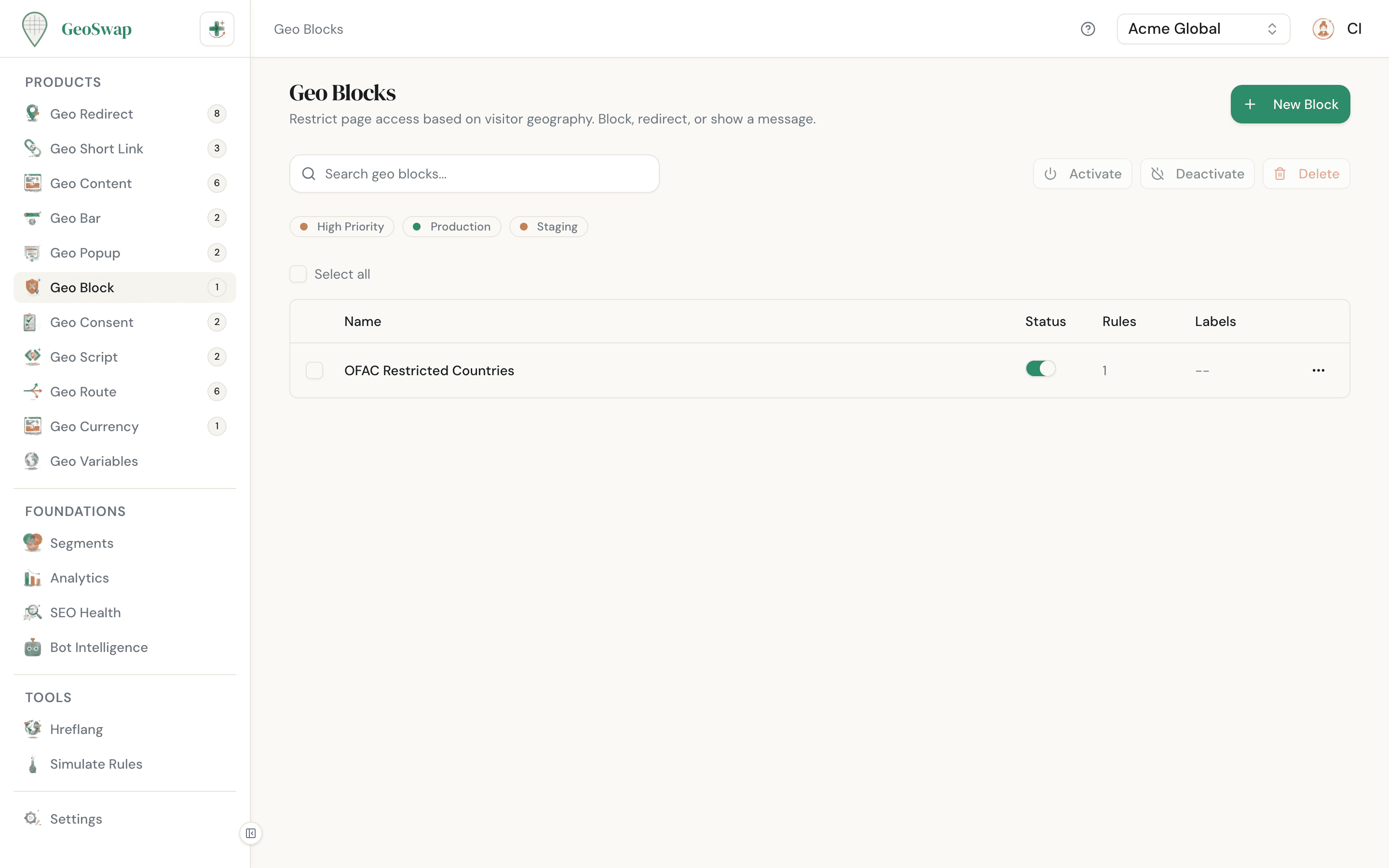
How to Create a Geo Block

Open Geo Blocks in your dashboard
Navigate to Geo Block in the sidebar and click New Block.

Name it and set page targeting
Give your block a descriptive name (e.g., "EU Content Restriction"). Choose which pages to protect: all pages, specific URLs, or a URL pattern (a regular expression). See Page Targeting below.

Add blocking rules
Each rule targets a segment and specifies a block mode: message, popup, or redirect. You can add multiple rules to handle different regions differently.

Configure each rule's content
Depending on the block mode you chose, fill in the Message HTML, the Popup Title and Popup Content HTML, or the Redirect URL. See the Block Modes section below for details.

Save and test
Click Create Block to activate it. Use the Simulate Rules tool in your dashboard to test from different countries without needing a VPN.
Block Modes
Each blocking rule uses one of three modes. Choose the one that fits your situation:
Message mode
Least disruptiveReplaces the whole page with your HTML message, centered on a white background. This is the simplest approach and works well when you want to explain why access is restricted. If you leave the message empty, visitors see "Access Restricted".
Example:
"This content is not available in your region due to licensing restrictions. Please visit our international catalog for available titles."
Popup mode
Attention-grabbingShows a popup with a title and message over the page. The page is dimmed and blurred behind it. There is no close button and clicking outside does nothing, so the visitor can't get past it. Use this when you want visitors to see that the page exists but not use it.
Example:
Title: "Access Restricted"
Message: "This service is not yet available in your country. We are working on expanding to your region. Enter your email to be notified when we launch."
Redirect mode
Best when you have an alternativeSends the visitor to a different URL (it must start with http:// or https://) as soon as the script gets its answer. This is the best option when you have a regional equivalent or a dedicated "not available" landing page.
Example:
EU visitors trying to access store.example.com/us-only-deal are redirected to store.example.com/eu-deals.
Rules and Segments
Each Geo Block can have multiple rules, and each rule targets a different segment with its own block mode. This means you can handle different regions in completely different ways within a single Geo Block.
Example: Multi-region content restriction
European UnionRedirectSend to EU version of the page
ChinaMessageShow licensing restriction notice
Rest of WorldPopupShow "coming soon" popup with email signup
Rules are evaluated in order. The first rule whose segment matches the visitor's location is the one that fires. Visitors who do not match any rule see the page normally.
A block takes priority over Geo Content, Bars, Popups, Scripts, and Currency. When a block fires, none of those run on the page. Geo Redirects are checked first, so a matching redirect wins over a block. Message and popup HTML support content variables like {{country_name}}.
Page Targeting
You control exactly which pages your Geo Block protects:
Option
Description
All pages
The block applies to every page on your site. Use this for site-wide restrictions (e.g., blocking an entire country from your service).
Specific URLs
The block applies only to the exact URLs you list. Use this when only certain pages need protection.
URL Pattern
A regular expression, checked against both the full address and the path. For example, ^/premium(/.*)?$ blocks every page in the premium section, and ^https?://(www\.)?example\.com/ matches a whole domain.
With All Pages or Specific URLs, you can also exclude pages (by URL, path, or pattern), for example to keep your contact page open to everyone. See page targeting for more examples.

Search engines are not blocked
Googlebot and other search engine crawlers are never affected by Geo Blocks. They always see your original page content, which means your pages remain indexed and ranked normally. See the SEO Safety docs for more details.
Geo Blocks are applied by the GeoSwap script in the visitor's browser. That makes them a good fit for regional notices and licensing messages, but they are not a replacement for server-side access control. Your page is still delivered, so anything truly sensitive should be protected on your server too.
Best Practices

Be thoughtful about blocking. Restricting access should be a last resort, not a first choice. If you can redirect or personalize instead, that is usually better for the visitor experience.
Always provide an explanation. A blank page or generic error frustrates visitors. Tell them why access is restricted and what they can do instead.
Use redirect mode when you have a regional alternative. Sending blocked visitors to a relevant page is far better than showing them a dead end.
Use segments to define blocked regions clearly. Broad segments ("European Union") are easier to maintain than listing individual countries.
Test your blocks with Simulate Rules before going live. Verify that the right visitors are blocked and that unblocked visitors see the page normally.
Review your blocks periodically. Licensing agreements, regulations, and your own service availability change over time. A block you set up last year may no longer be needed.

Next up
Learn about SEO safety across all GeoSwap products.