Attribution
Know which ads and channels made the sale.
GeoSwap ties every lead and order to the visits before it and splits the credit five ways. Each conversion counts once, and anything it can't match sits on its own line.
No credit card · Every feature on every plan

TL;DR
GeoSwap attribution credits every conversion to the visits before it under five models, with journeys, lead lookup, spend and ROAS. Send conversions from your site, Shopify checkout or the API.
Features
What Attribution does

Five models, side by side
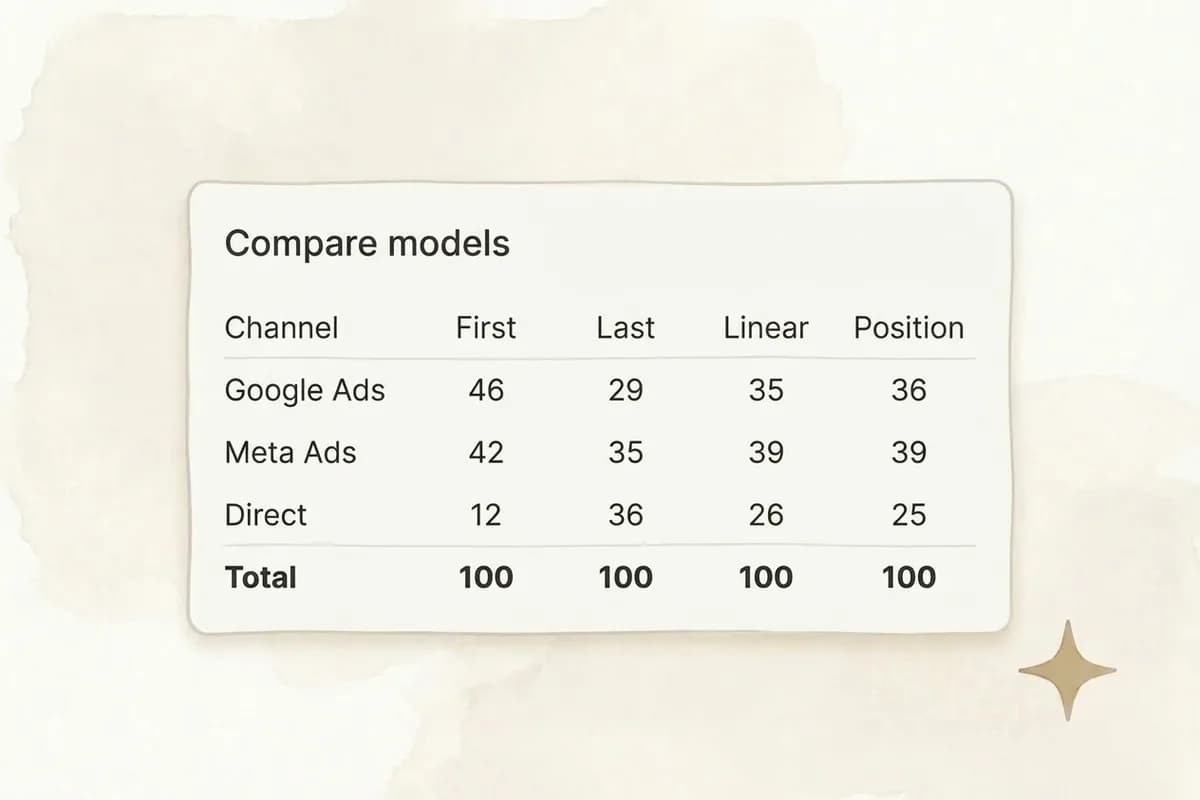
Position (40/20/40, the default), first touch, last touch, linear and time decay. Every conversion is credited under all five, so switching is instant. Where it's turned on, events with about 300 conversions a month add a Data-driven column.

Totals that add up
Each model splits exactly one conversion and its value across the visits. Conversions with no matching visit sit on an Unattributed line. Nothing is quietly spread around.

Customer journeys
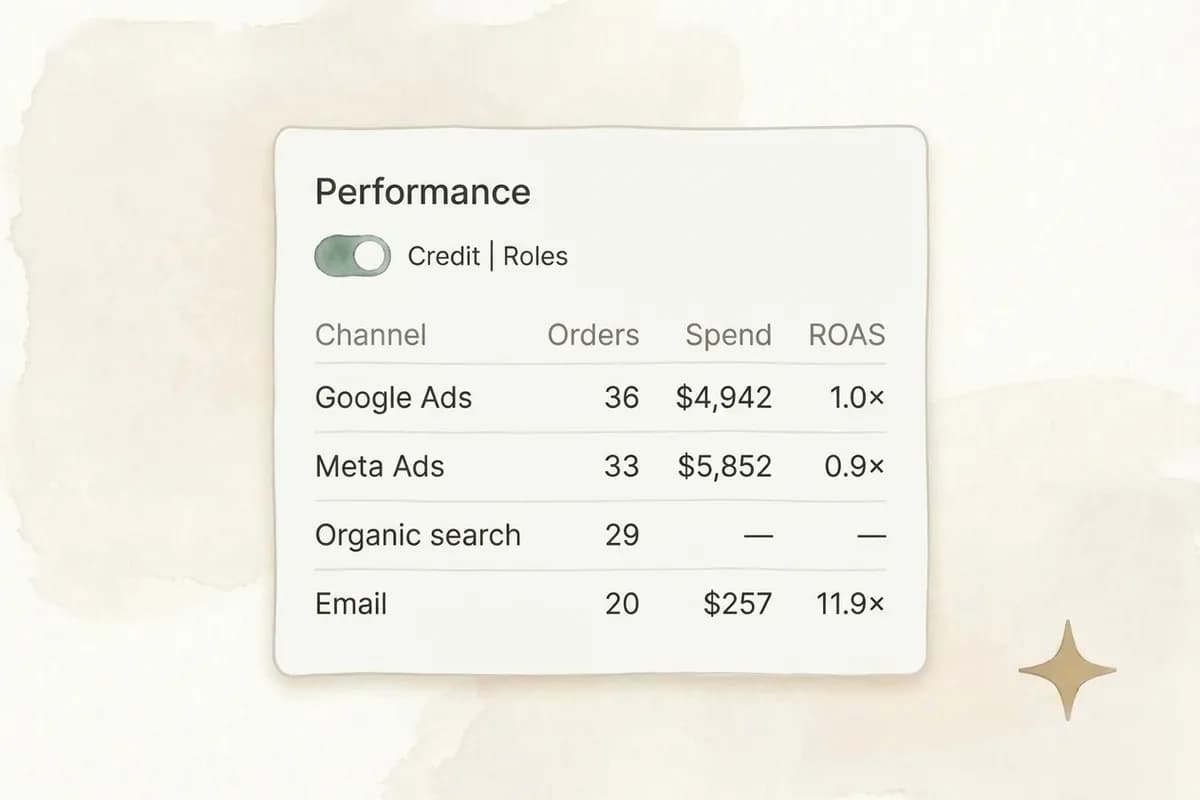
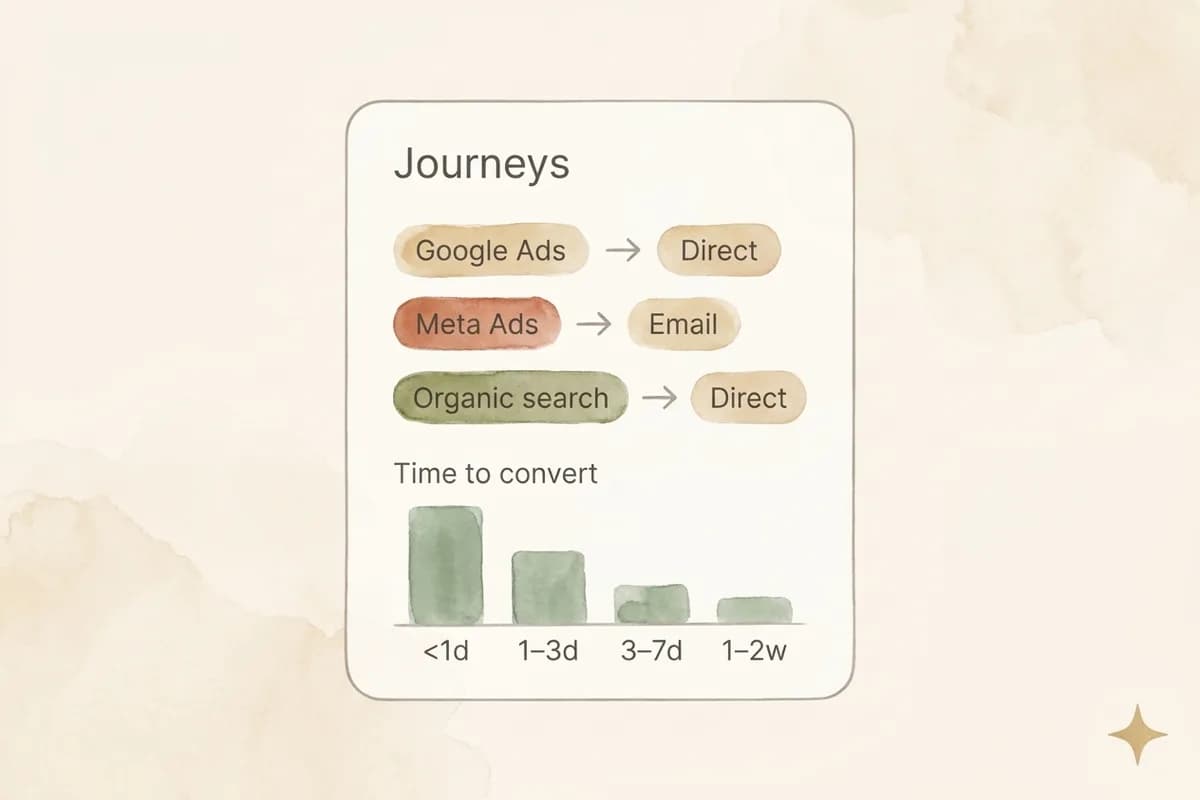
The most common channel paths and how many days and visits it takes to convert. Performance's Roles columns show which channels open, assist or close a journey.

Lead lookup
Find one lead or order by your CRM id or email. See every visit before it, each model's credit and the journey's stages, from lead to signed deal.

Conversions from anywhere
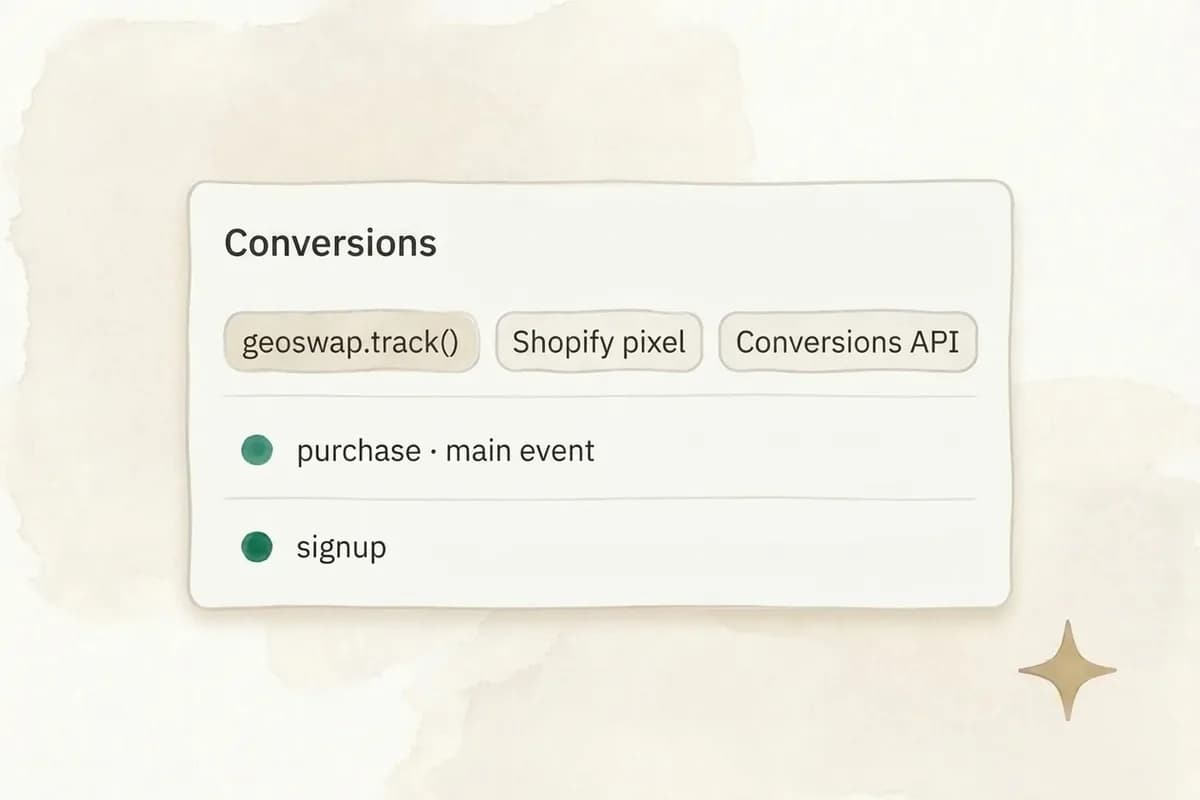
Call geoswap.track() on a thank-you page, paste the custom pixel into Shopify checkout, or send leads and deals from your CRM or server with the conversions API.

Ad platform claims next to yours
With Meta or Google Ads connected, Meta-reported purchases and Google-reported conversions sit beside GeoSwap's credited numbers, with spend for ROAS and cost per conversion.
Why this matters
What the research says
39%
of senior B2B marketing leaders are extremely or very confident measuring marketing's effect on financial results (200 surveyed)
Source: ANA, "The Confident B2B Marketer" (Oct 14, 2025)
7 days
of Safari use without visiting and interacting with a site, after which Safari deletes the cookies and storage its scripts set
Source: WebKit, "Full Third-Party Cookie Blocking and More" (Mar 24, 2020)
How it works
Set up Attribution

The GeoSwap script notes where each visit came from: UTM tags, ad click ids, the referrer and GeoSwap short-link clicks. Bots are left out.

Send conversions with geoswap.track(), the Shopify checkout pixel, or the conversions API.

Every hour, GeoSwap matches conversions to the visits before them and credits all five models. Most are credited within about three hours.

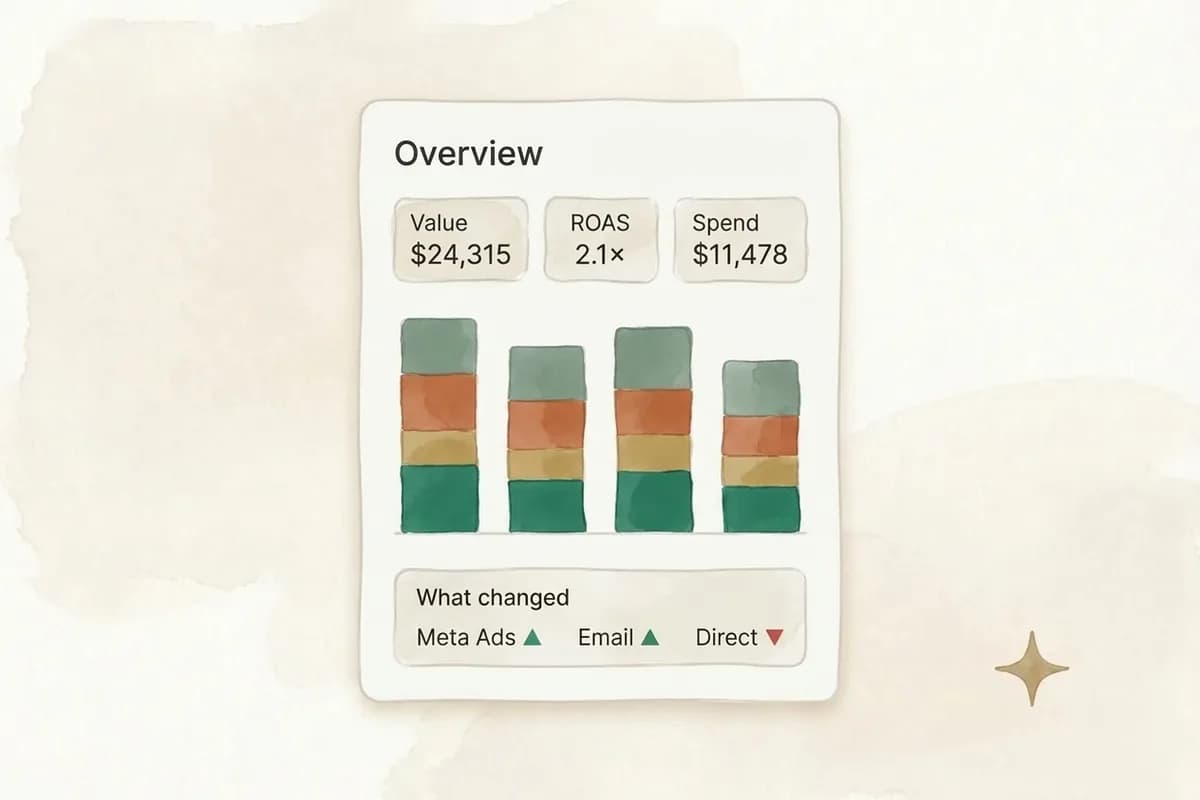
Open Overview for the weekly trend and what moved, then Performance for conversions, cost and ROAS by channel, campaign or country.
Step by step
From the first conversion to the full story, in five screens
Step 1
Send your conversions
Call geoswap.track() on a thank-you page, add the Shopify checkout pixel, or send leads and deals from your CRM with the conversions API. Every hour, GeoSwap credits each one to the visits before it.
Step 2
See how marketing is doing
Overview shows the headline numbers for the weeks you pick (conversions or value, spend, cost per conversion or ROAS), credited conversions by channel and week, and What changed: the channels that moved most since the period before.
Step 3
Find what earns its spend
Performance puts each channel, campaign, country or ad platform in one row: conversions, value, spend, cost per conversion and ROAS. Grouped by channel, switch the columns to Roles to see which channels open, assist or close.
Step 4
Compare the models
One table with every channel under first touch, last touch, linear, position and time decay, and how much each gains or loses against the one you pick. Every column adds up to the same total.
Step 5
Follow the journeys
Journeys shows the most common channel paths and how many days and visits people take to convert. Lookup finds one lead or order by your id or email, with every visit before it.
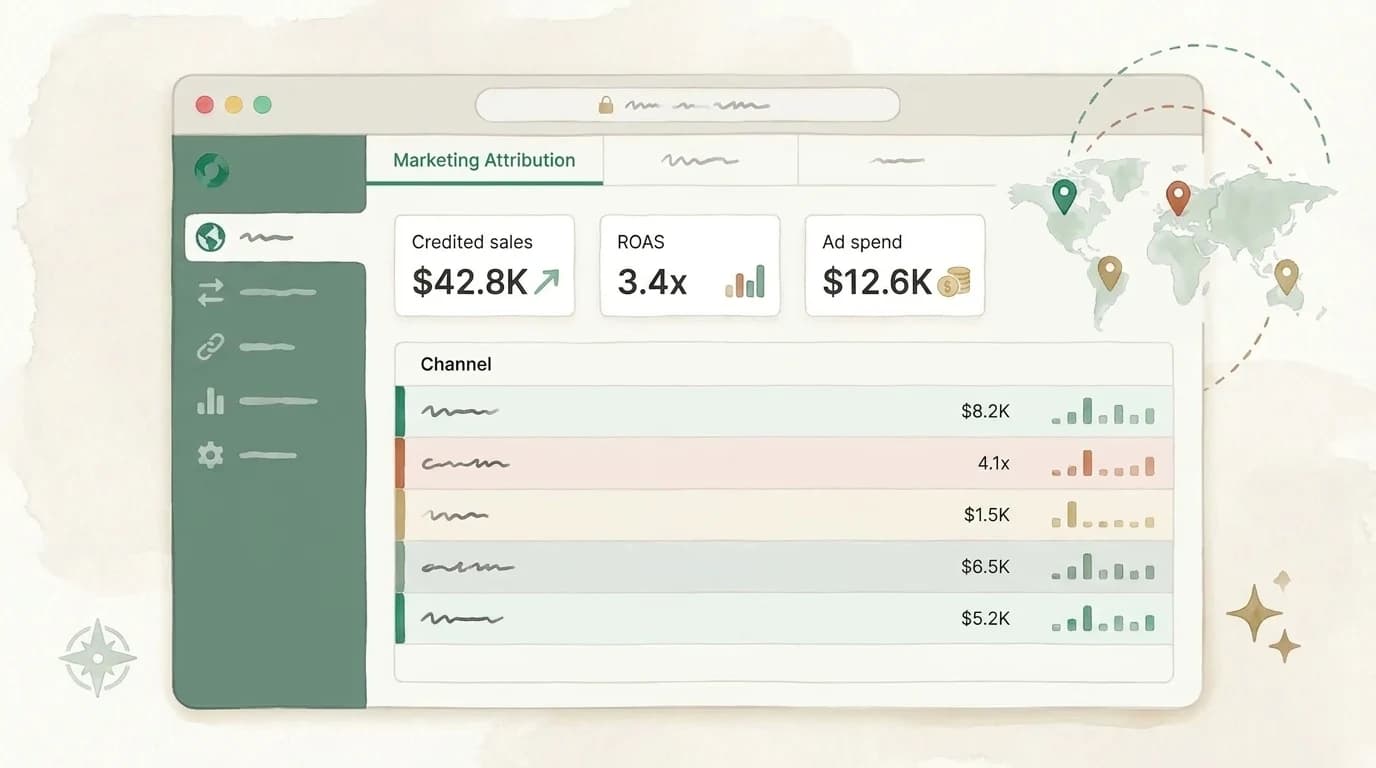
The Attribution dashboard
Before and after
What changes with Attribution
Two ad platforms claim the same sale
Without it
Meta and Google Ads each report the order as theirs, so the two dashboards add up to more sales than you made.With Attribution
GeoSwap credits each order once across every channel. Each platform's own claim sits beside it, so you can see the gap.Organic and email get no credit
Without it
Last-click reports hand everything to the final ad, and the newsletter that started most journeys looks worthless.With Attribution
Compare models and the Roles columns show the channels that open journeys, not just the ones that close them.A big lead you can't explain
Without it
Sales asks where a new enterprise lead came from and nobody can say.With Attribution
Lookup finds it by email or CRM id and lists every visit before it, each model's credit and its stages to signed deal.Use cases
How teams use Attribution

Shopify stores
The checkout pixel sends every completed order. See revenue and ROAS by channel and campaign, with Meta's and Google's own claims beside them.

B2B lead generation
Track the lead on your site, then send qualified and signed from your CRM with the same id. Each stage gets its own column, and Lookup traces one lead end to end.

Podcasts, print and direct mail
Put a GeoSwap short link or QR code in the ad. Label it podcast or mail and its clicks count in the Podcast or Direct mail channel.
Install
Add it to your site
- Open your site's HTML (every page, or the shared layout).
- Paste the snippet just before </head>.
<script>window.geoswap=window.geoswap||{q:[],track:function(){this.q.push(arguments)}};</script>
<script src="https://cdn.geoswap.co/geoswap.js" data-project="YOUR_PROJECT_ID" defer></script>
Your project ID is filled in for you in the dashboard (Setup → Sites & script).
Frequently Asked Questions
Explore more

Ready to try Attribution?
Every feature on every plan. Plans differ by history, team and scale.